

WP File Access Manager
” content_phone=”WP File Access Manager
” content_last_edited=”on|desktop” _builder_version=”4.21.0″ _module_preset=”default” header_font=”Raleway|800||on|||||” header_text_align=”center” header_text_color=”#ffffff” header_font_size=”80px” header_line_height=”94px” text_orientation=”center” custom_margin=”||3px|||” header_font_size_tablet=”60px” header_font_size_phone=”50px” header_font_size_last_edited=”on|phone” header_line_height_tablet=”75px” header_line_height_phone=”60px” header_line_height_last_edited=”on|tablet” global_colors_info=”{}”]WP File Access Manager
[/et_pb_text][et_pb_text content_tablet=”Ever wondered about uploading files for specific users or restricting one or multiple users from accessing a file you uploaded on your WordPress site? This is the solution for you! ” content_phone=”Ever wondered about uploading files for specific users or restricting one or multiple users from accessing a file you uploaded on your WordPress site? This is the solution for you! ” content_last_edited=”on|desktop” _builder_version=”4.21.0″ _module_preset=”default” text_font=”Raleway|600|||||||” text_text_color=”#ffffff” text_font_size=”20px” text_line_height=”36px” text_orientation=”center” custom_margin=”||55px|||” hover_enabled=”0″ global_colors_info=”{}” sticky_enabled=”0″]Ever wondered about uploading files for specific users or restricting one or multiple users from accessing a file you uploaded on your WordPress site? This is the solution for you![/et_pb_text][et_pb_code _builder_version=”4.21.0″ _module_preset=”default” module_alignment=”center” global_colors_info=”{}”][/et_pb_code][/et_pb_column][/et_pb_row][/et_pb_section][et_pb_section fb_built=”1″ _builder_version=”4.21.0″ _module_preset=”default” da_disable_devices=”off|off|off” global_colors_info=”{}” da_is_popup=”off” da_exit_intent=”off” da_has_close=”on” da_alt_close=”off” da_dark_close=”off” da_not_modal=”on” da_is_singular=”off” da_with_loader=”off” da_has_shadow=”on”][et_pb_row module_class=”themen-services-tabs” _builder_version=”4.19.0″ _module_preset=”default” custom_padding=”21px|||||” locked=”off” global_colors_info=”{}”][et_pb_column type=”4_4″ _builder_version=”4.19.0″ _module_preset=”default” global_colors_info=”{}”][et_pb_text _builder_version=”4.19.0″ _module_preset=”default” header_2_font=”Raleway|800||on|||||” header_2_text_align=”center” header_2_text_color=”#112a46″ header_2_font_size=”55px” header_2_line_height=”65px” custom_margin=”||28px|||” custom_margin_tablet=”||15px||false|false” custom_margin_phone=”||15px||false|false” custom_margin_last_edited=”on|tablet” header_2_font_size_tablet=”30px” header_2_font_size_phone=”30px” header_2_font_size_last_edited=”on|phone” header_2_line_height_tablet=”40px” header_2_line_height_phone=”40px” header_2_line_height_last_edited=”on|tablet” locked=”off” global_colors_info=”{}”]THE WORKFLOW
[/et_pb_text][et_pb_text _builder_version=”4.21.0″ _module_preset=”default” hover_enabled=”0″ sticky_enabled=”0″ text_text_color=”#FFFFFF” header_text_color=”#FFFFFF” header_text_align=”center” header_line_height=”1.8em” text_line_height=”1.8em”]Want to test it out more deeply by logging in? We have a demo environment where you can test it out. Click here to go to the demo environment.
[/et_pb_text][et_pb_tabs active_tab_background_color=”#2e2e38″ inactive_tab_background_color=”#6c63ff” active_tab_text_color=”#FFFFFF” module_class=”wp-file-tab-manger” _builder_version=”4.21.0″ _module_preset=”default” tab_text_color=”#FFFFFF” body_font=”Roboto||||||||” body_text_color=”#838383″ body_font_size=”16px” body_line_height=”26px” tab_font=”Roboto|700|||||||” tab_font_size=”18px” tab_line_height=”26px” module_alignment=”center” custom_padding=”||||false|false” custom_css_tabs_content=”font-weight:400 !important;” global_colors_info=”{}”][et_pb_tab title=”Individual File” _builder_version=”4.21.0″ _module_preset=”default” background_color=”#f5f5f5″ background_enable_color=”on” global_colors_info=”{}”]Restrict by Users
Select the users who will be allowed or disallowed from accessing the file. You have both the option of allowing or disallowing that specific user.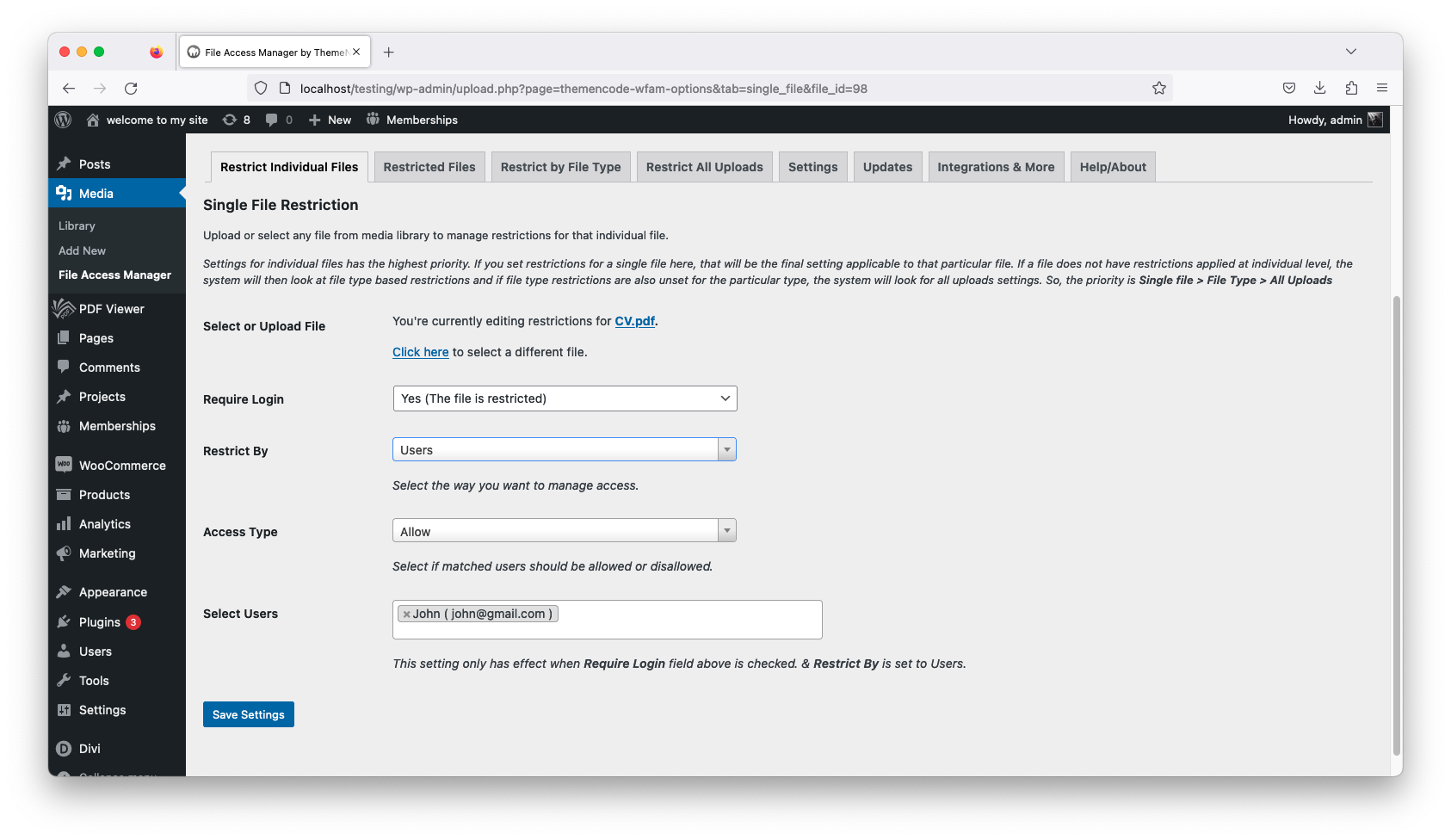
Selecting Users For Restriction
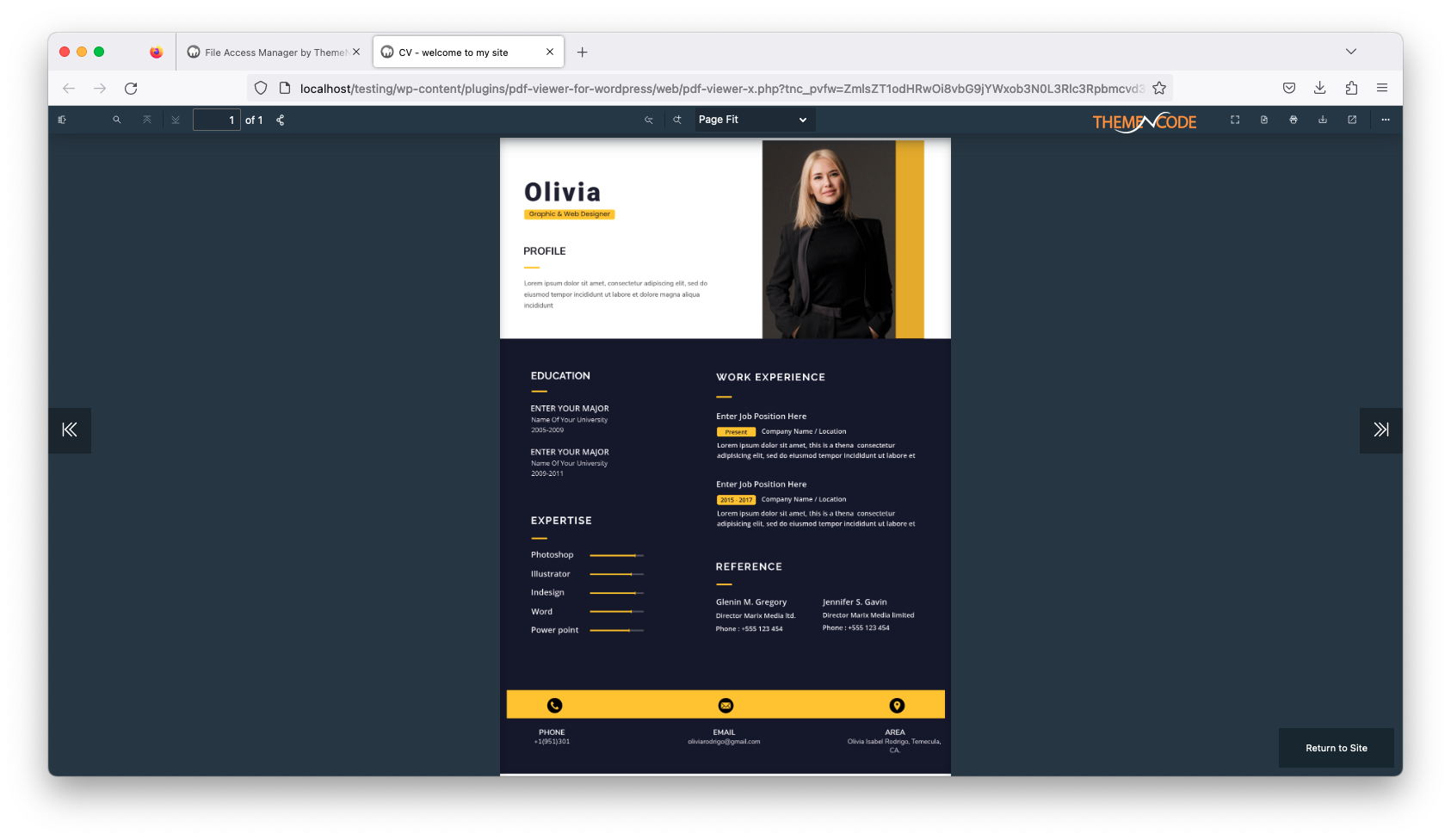
For Authorized Visitors
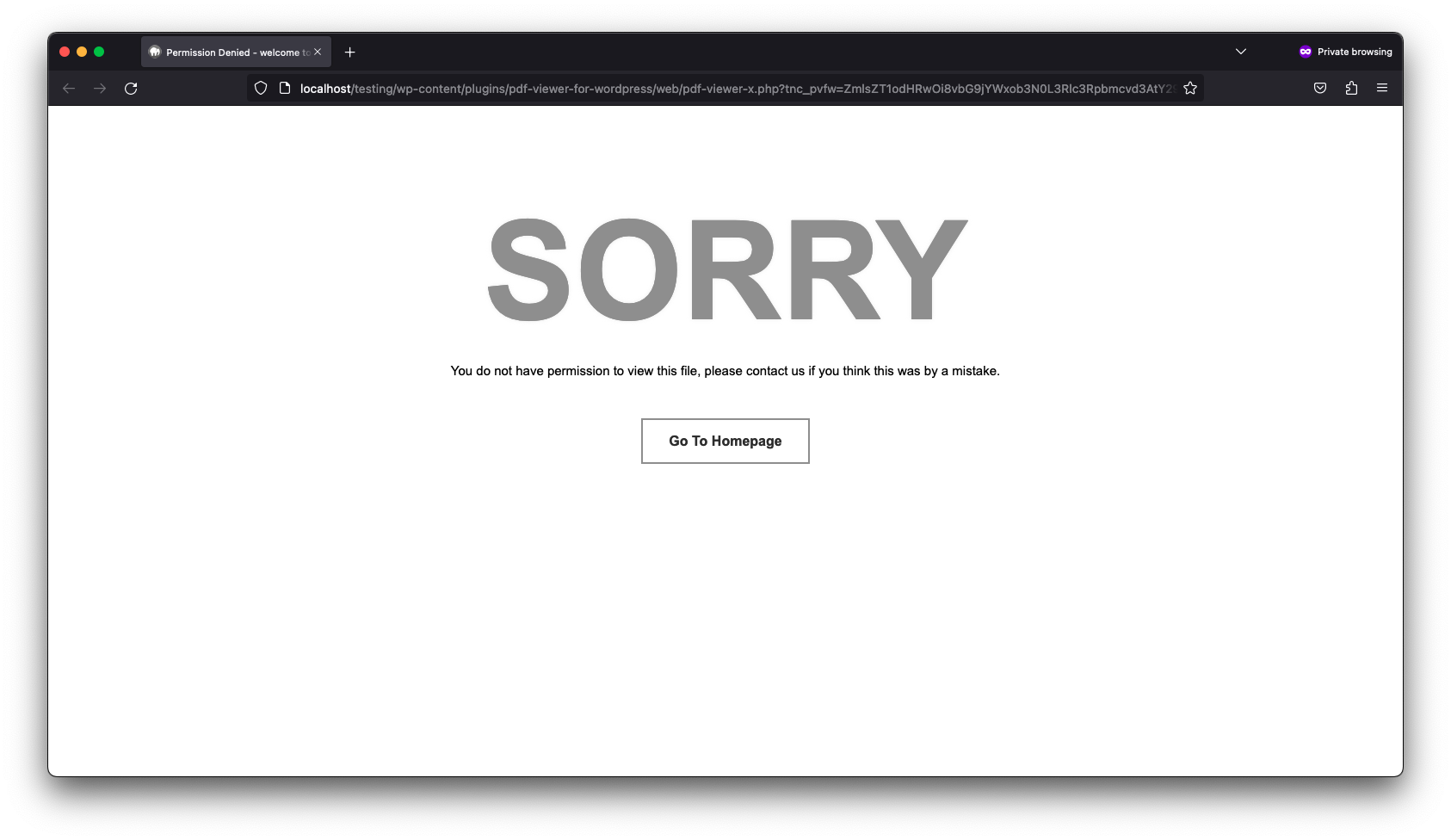
For Restricted Visitors
Restrict by User Roles
If you want to restrict the file access based on user roles this is the option for you. All the roles by WordPress and WooCommerce is possible.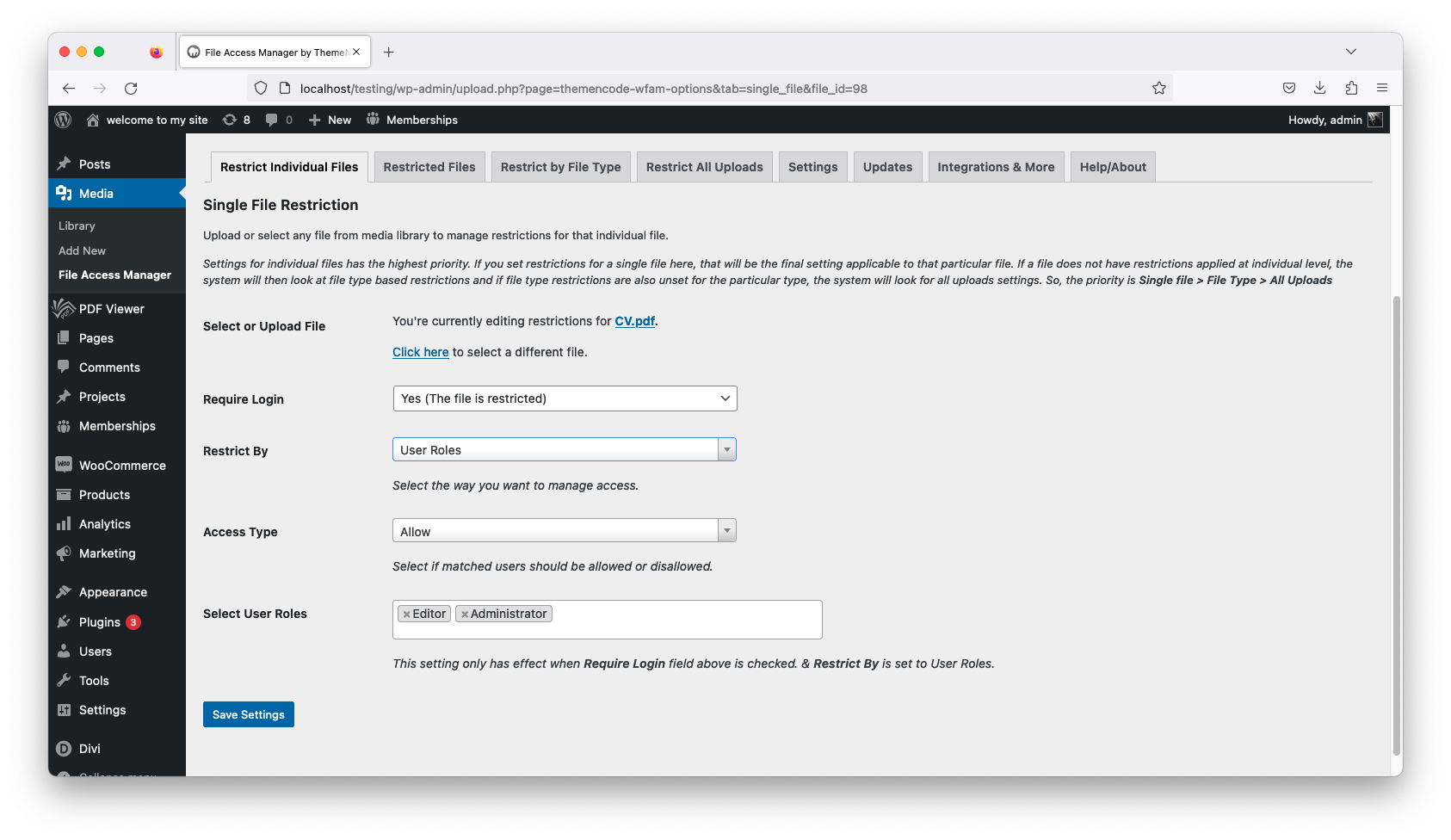
Set Restriction Based on Users Roles
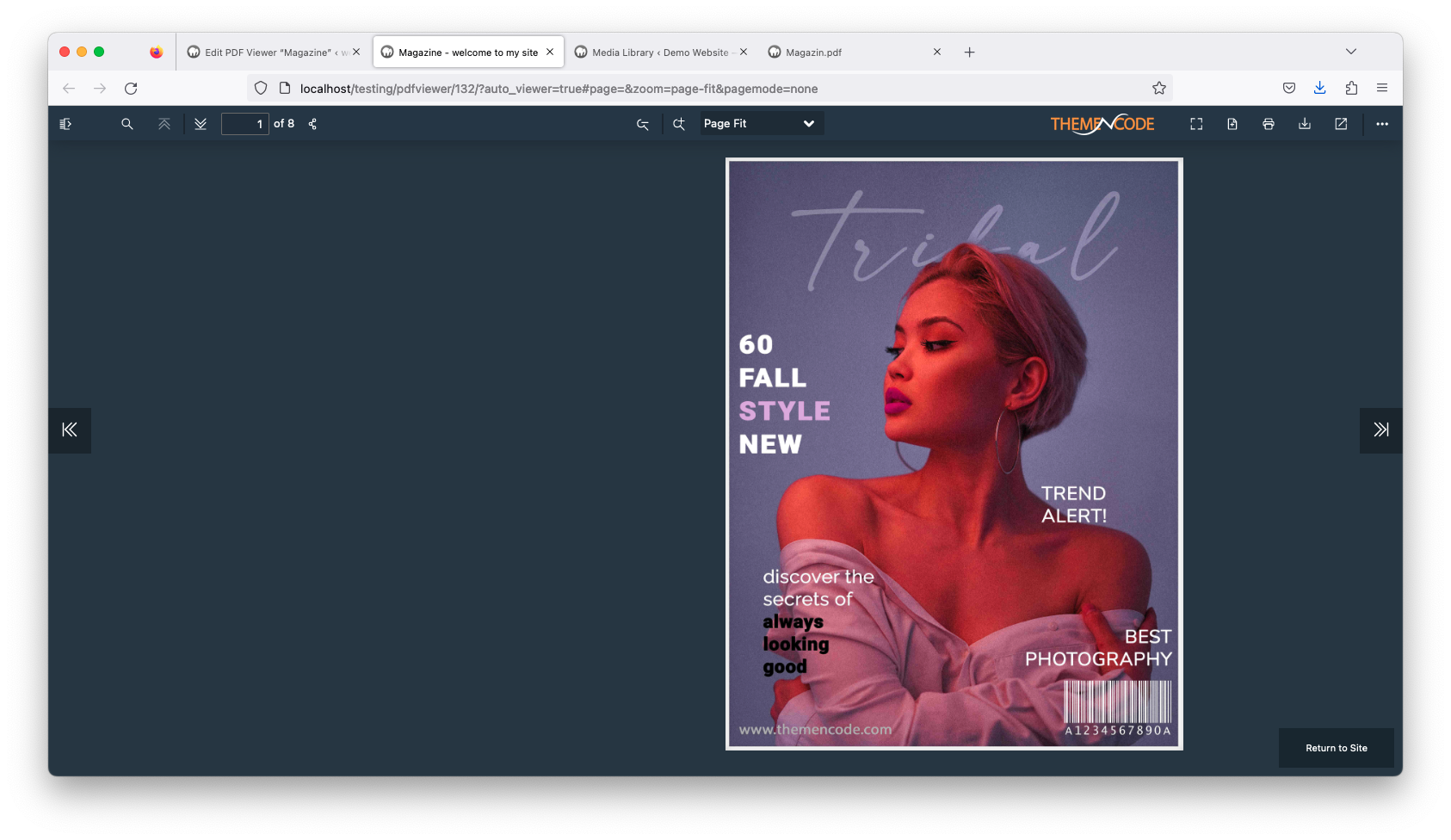
For Authorized Visitors
For Restricted Visitors
Restrict by WooCommerce
Files can be restricted using WooCommerce products. Only those visitors who has purchased the selected product will have the permission to see the file.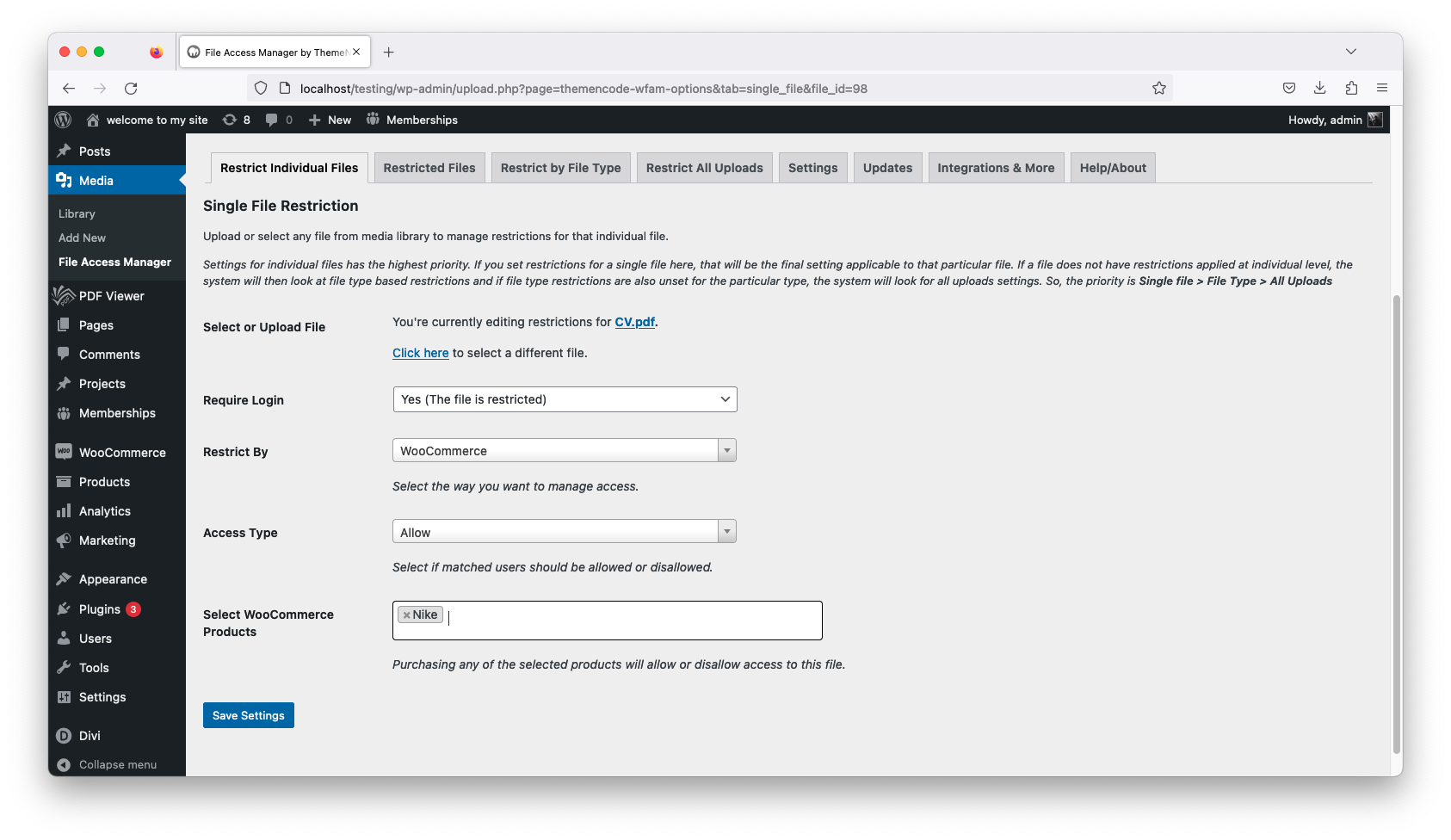
Setup Restriction Based on WooCommerce Product
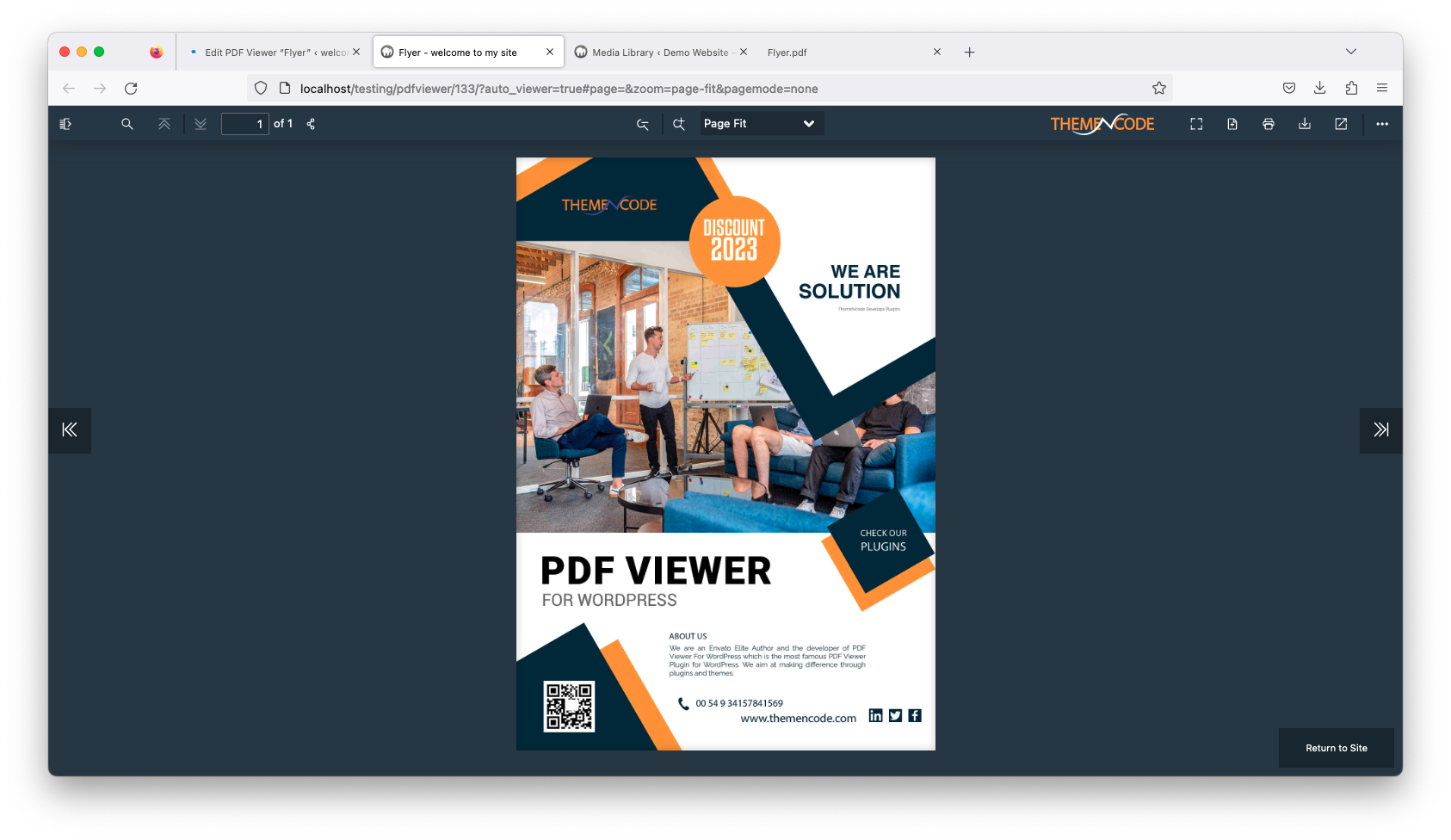
For Authorized Visitors
For Restricted Visitors
Restrict by Paid Membership Pro Level
Select which Level will have the access to the file that you want to put restriction on. All the Paid Membership Pro level can be selected.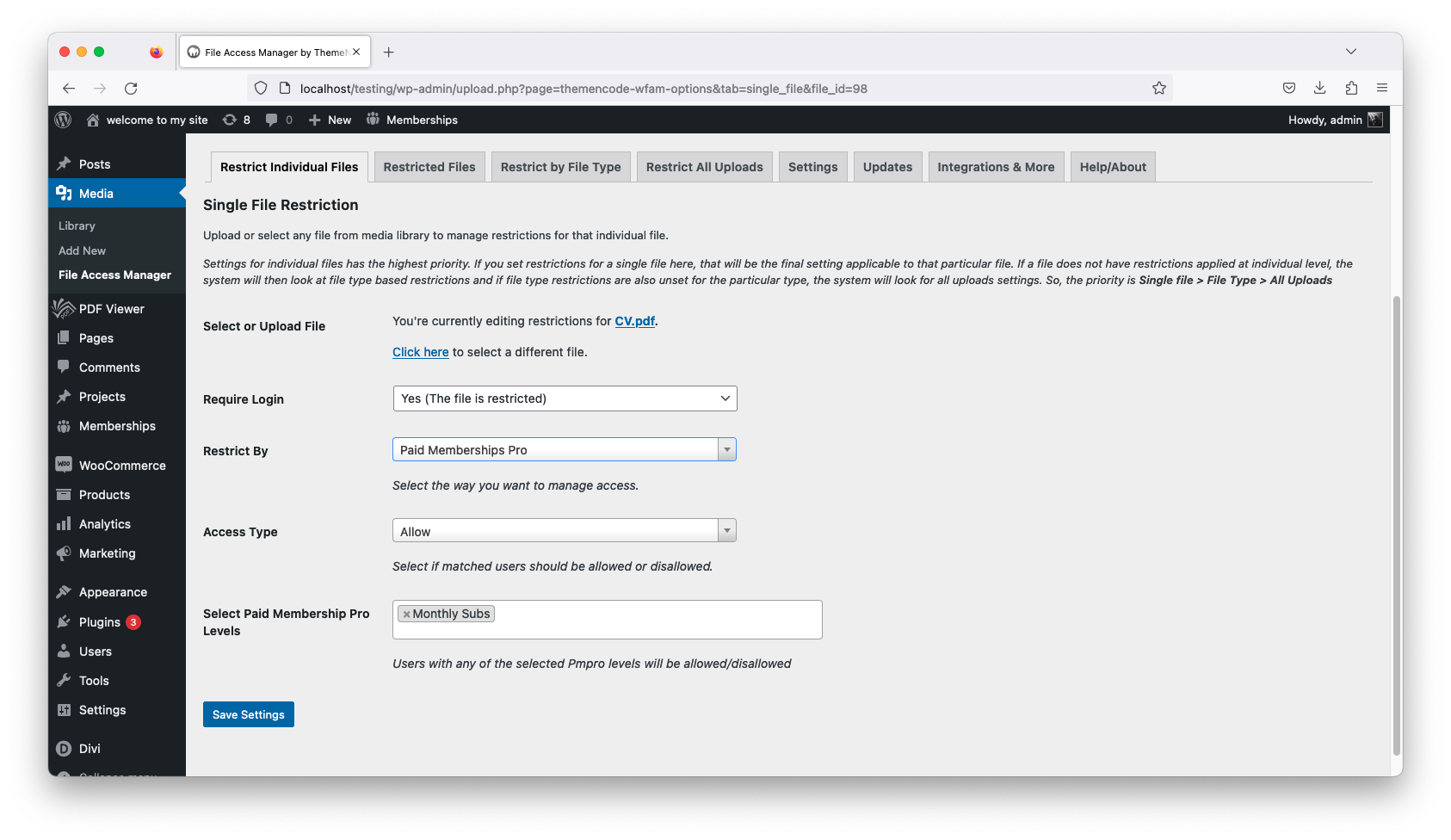
Setup Restriction Based on Paid Membership Pro Level
For Authorized Visitors
For Restricted Visitors
Image/png Settings
With this function you can setup restriction for all the png images that you have uploaded on your WordPress website. Restrict the file access based users or user roles. Select whom you want to give access and whom you want to restrict.
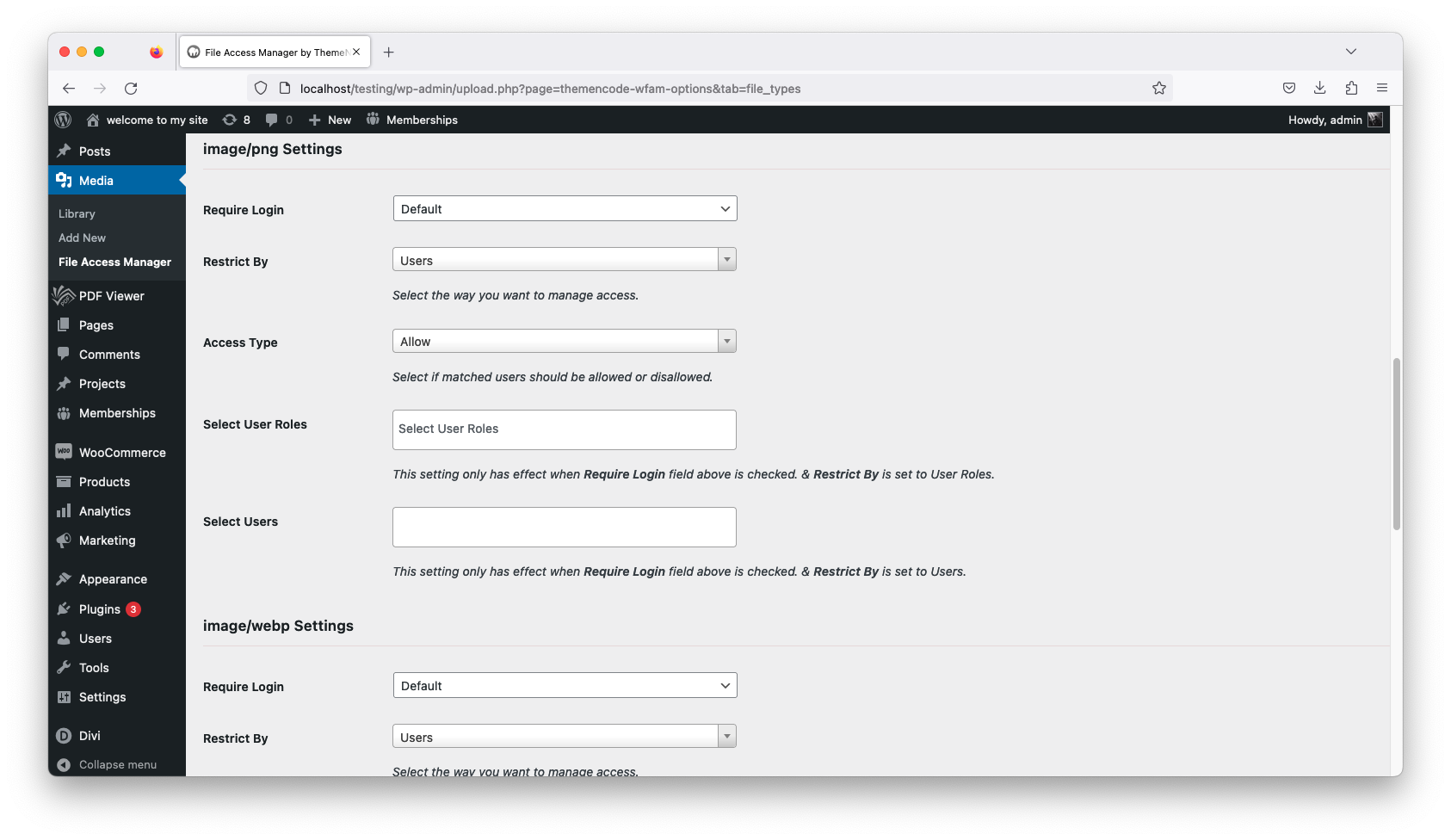
Image/png File Type Restriction
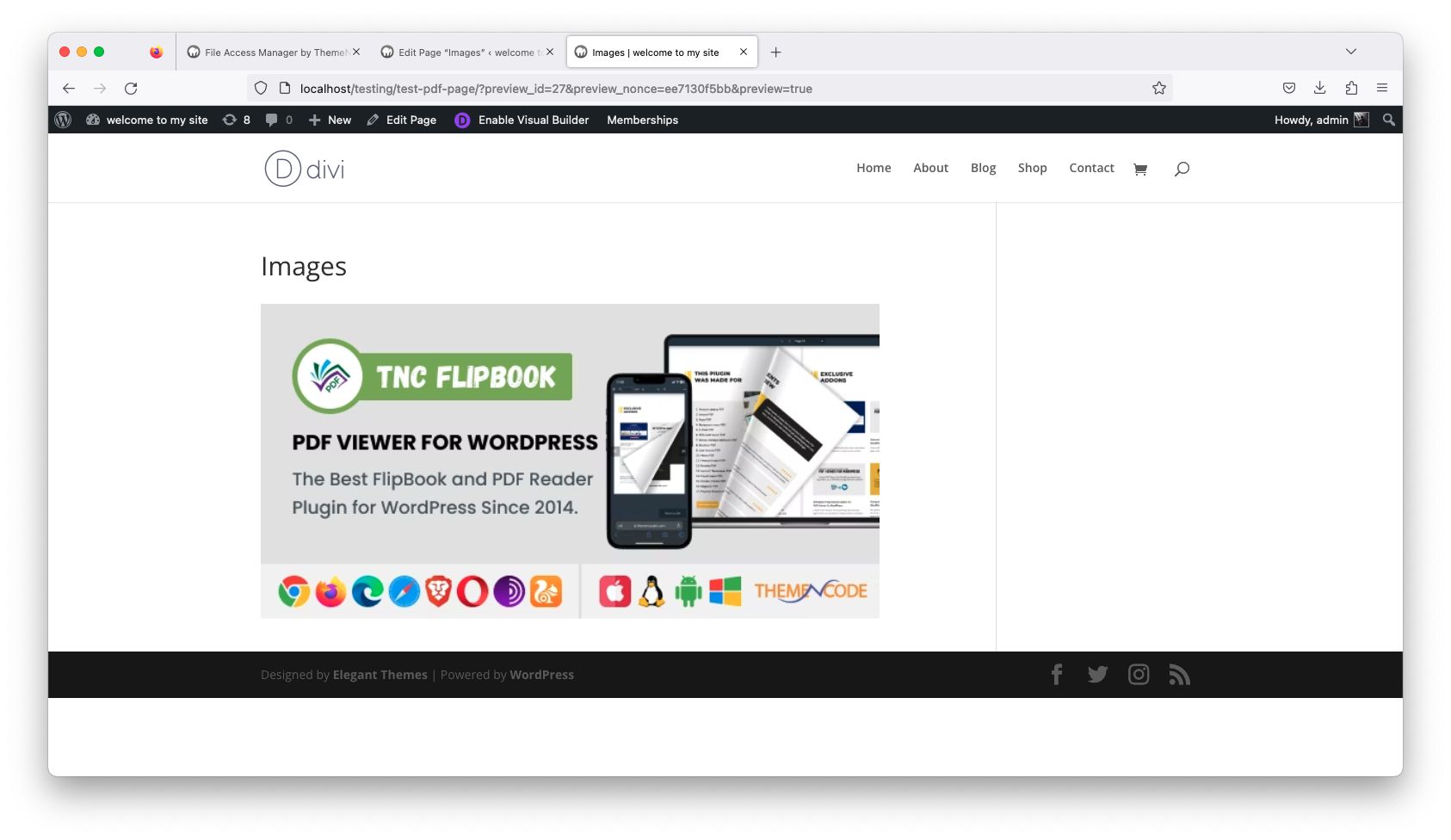
For Authorized Visitors
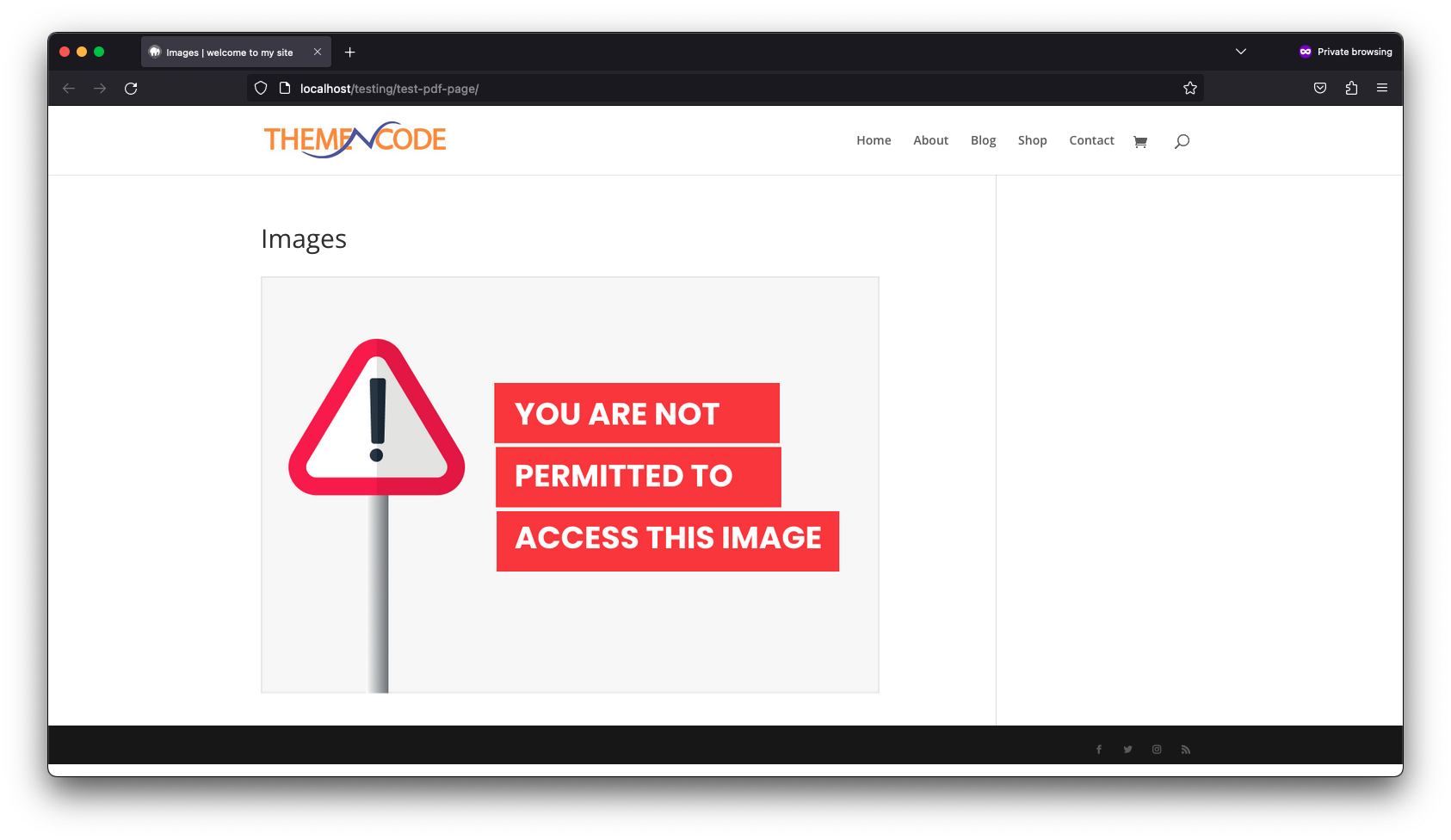
For Restricted Visitors
Image/webp Settings
This option will apply restrictions for the jpg image file type. All the webp images on the website will be restricted to permitted visitors only that you choose based on user or user roles.
Image/webp File Type Restriction
For Authorized Visitors
For Restricted Visitors
Restrict Any File Type
There will be all the file type visible for restriction that you have on your WordPress website. You can select different restriction method for each file type also.
Image/webp File Type Restriction
For Authorized Visitors
For Restricted Visitors
Restrict by Users
Select the users who will be allowed or disallowed from accessing all uploads. You have both the option of allowing or disallowing that specific user from all the present or future uploads.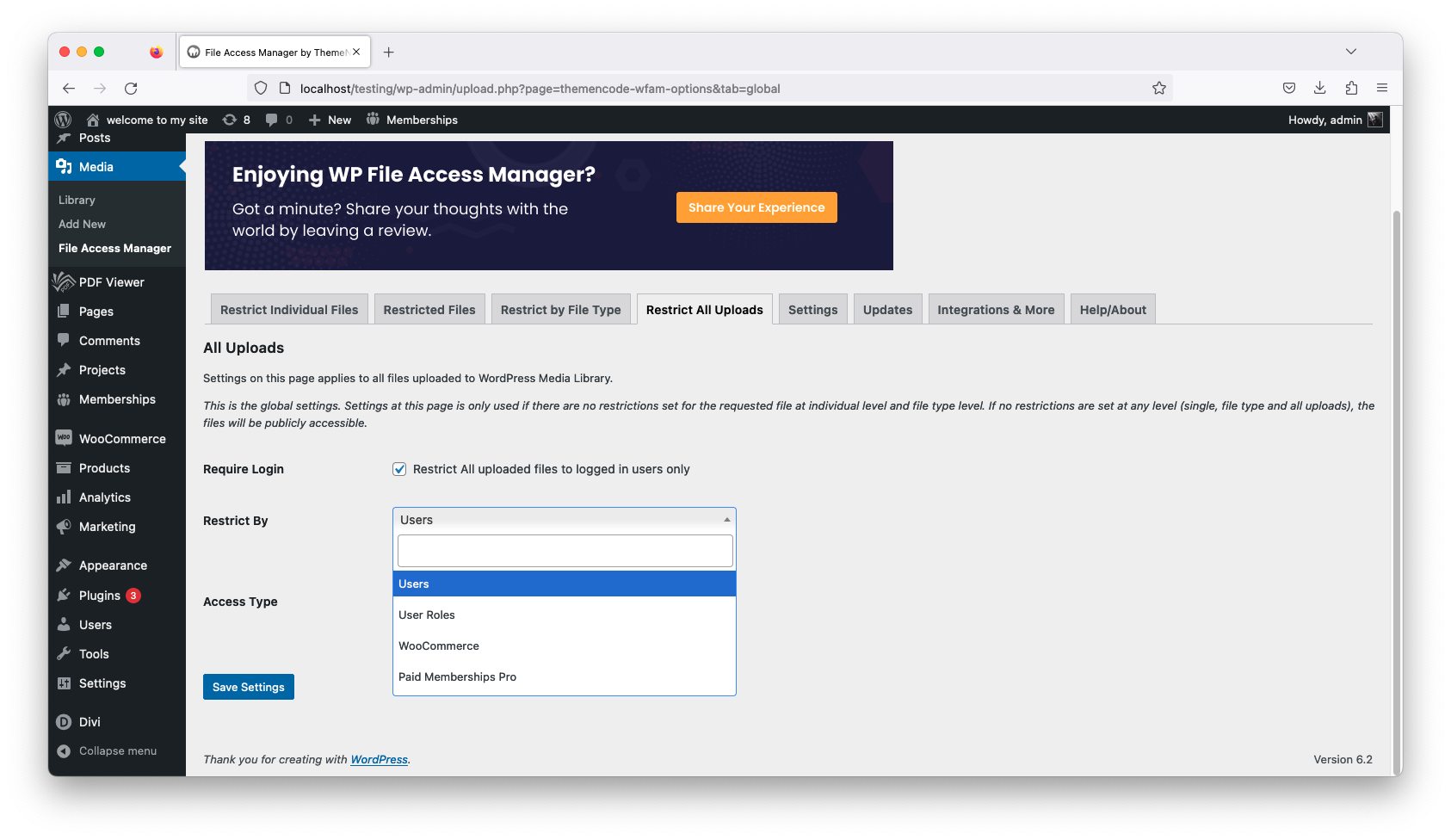
Selecting Users For Restriction
For Authorized Visitors
For Restricted Visitors
Restrict by User Roles
If you want to restrict the file access based on user roles this is the option for you. All the roles by WordPress and WooCommerce is possible. All the uploads will be allowed or disallowed from the selected user role.
Set Restriction Based on Users Roles
For Authorized Visitors
For Restricted Visitors
Restrict by WooCommerce
Files can be restricted using WooCommerce products. Only those visitors who has purchased the selected product will have the permission to see all the uploads.
Setup Restriction Based on WooCommerce Product
For Authorized Visitors
For Restricted Visitors
Restrict by Paid Membership Pro Level
Select which Level will have the access to the file that you want to put restriction on. All the Paid Membership Pro level can be selected but only the permitted level can access all the uploads.
Setup Restriction Based on Paid Membership Pro Level
For Authorized Visitors
For Restricted Visitors
Require Login
If you fill this checkmark that only the logged in users of your website will have the access to view any media files. Visitors who are not logged in will be restricted.
Restrict all Uploads at once
For Authorized Visitors